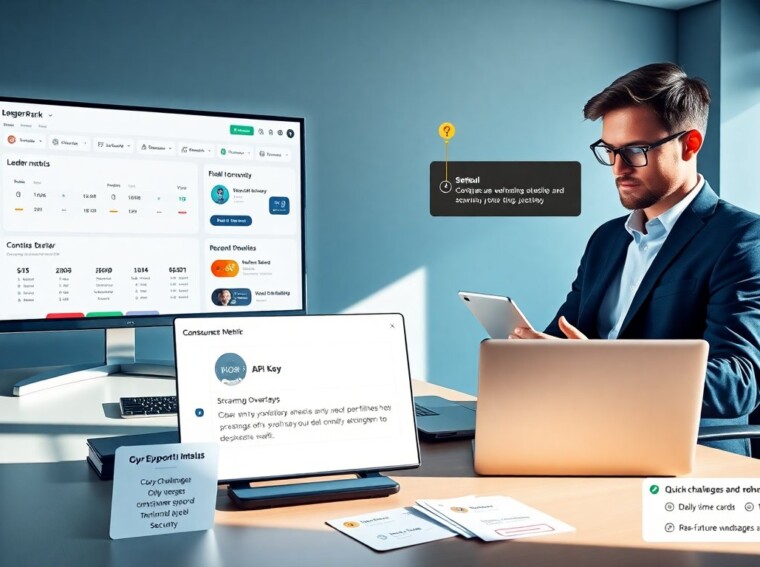
The latest mygamerank update arrived in 2026 with interface, scoring, and streaming changes. Players and streamers can access new metrics, faster sync, and clearer badges. This article explains the main changes, shows how to use each feature, and offers fast tips to boost scores.
Key Takeaways
- The latest mygamerank update introduces a revamped scoring model emphasizing active playtime, competitive matches, and viewer engagement for more accurate rankings.
- New interface improvements include detailed leaderboard filters by region, game mode, and platform, plus real-time sync for faster score updates after matches.
- Streamers benefit from native overlays displaying viewer counts and follower events, along with a dashboard offering tips and best streaming times to boost engagement.
- Two-factor authentication and session control enhance account security, while stricter permissions protect user data from third-party apps.
- Daily challenges reward players with score boosts and badges, encouraging consistent participation and community interaction.
- To troubleshoot common issues, users should verify connectivity, update the app, re-link games, and use recovery options for authentication problems.
What’s New In The Latest MyGameRank Update — Key Features And Changes
MyGameRank changed its scoring model in the latest mygamerank release. The system now weights active playtime, competitive matches, and viewer engagement more clearly. The update adds a visible engagement metric that shows chat activity, donation events, and concurrent viewers. The ranking algorithm now penalizes inactive accounts after 30 days. The update adds daily challenges that grant small score boosts and temporary badges.
The interface received a clean layout. The leaderboard now shows sub-metrics for skill, consistency, and community. Players can filter leaderboards by region, game mode, and platform. The mobile view now prioritizes core stats and the player’s next milestone. The update adds real-time sync for match results so scores update faster after a game ends.
Streamers receive new integrations. MyGameRank added native overlays for viewer count and recent follower awards. The overlays work with major streaming software and require a single API key. The update also offers a dedicated streamer dashboard that displays tips to grow engagement and shows top-performing clips automatically. The system suggests the best times to stream based on a creator’s audience activity.
Security and account control improved. The latest mygamerank release enforces two-factor authentication for high-score changes and allows session logging. Players can review recent logins and revoke active sessions from the settings menu. The update also tightens how third-party apps request permissions and shows a clear list of allowed actions before approval.
The update includes backend stability fixes. Match results now queue reliably during server spikes. The update reduced score calculation lag and cut sync errors by a large margin. MyGameRank published a short change log that lists the fixes and explains how the new metrics affect long-term ranking trends.
How To Use The New Features: Step‑By‑Step Guide For Players And Streamers
A player should update the app or refresh the web client first. The app will prompt for an update or restart. A player should confirm two-factor authentication when prompted. The system will ask for a phone or authenticator app. After verification, the player can open the new dashboard.
A player can view the new engagement metric on the profile page. The engagement box shows chat activity, recent donations, and viewer spikes. A player can click each sub-metric to see a 7‑day graph. The leaderboard filters sit at the top of the leaderboard page. A player can filter by region, game mode, or platform and then click apply.
To use daily challenges, a player should open the challenges tab. A player can accept a challenge and track progress in real time. Completing a challenge grants score boosts and temporary badges. The system applies boosts automatically to the scoreboard after a match.
A streamer should generate an API key in Settings > Streamer Tools. The streamer must copy the key into their overlay plugin or streaming software. The overlay will show viewer count and recent follower events after connection. The streamer should enable automatic clip suggestions in the dashboard. The dashboard will highlight clips with high viewer engagement and suggest repost times.
The streamer can use the timing suggestion tool to plan sessions. The tool shows hours with the highest audience activity and recommends a 2‑hour block. A streamer can pair the tool with the overlay data to test changes and watch for engagement lifts.
If a player or streamer wants the new badges, they must meet the criteria listed on each badge page. Badges display the requirement and progress meter. Meeting the requirement triggers an instant update to the profile. The system will notify the user with an in-app message.
Troubleshooting And Quick Fixes For Common MyGameRank Issues
If the latest mygamerank data fails to sync, the user should check the internet connection first. A user should sign out and sign back in next. This action forces a full resync. If scores still lag, the user should clear the client cache or reload the web app.
If the overlay does not show viewer events, the streamer should verify the API key. The streamer should paste the key into the overlay plugin again and test. If the overlay still fails, the streamer should check the streaming software’s browser source permissions. A browser source must allow scripts and cross‑origin requests.
If daily challenges do not register progress, the player should confirm the correct game mode and region. Challenges track activity in specific modes only. The player should also make sure the game is linked to the account under Settings > Linked Games. Re-linking the game often resolves tracking errors.
If two-factor prompts block access, the user should use the account recovery options. The recovery page will ask for a backup code or an email verification. The user should keep backup codes safe and store them outside the device. If recovery fails, the user should contact support with a recent screenshot of the account page.
If leaderboard filters return odd results, a user should check the date range. The system will default to a recent window that may hide older matches. Adjusting the date range usually fixes ranking mismatches. For persistent errors, the user should report the issue using the built-in bug report tool. The tool attaches relevant logs automatically.
If score penalties appear unexpectedly, the user should review the account activity log. The log will show inactivity penalties and policy violations. A user can appeal a penalty by opening an appeal from the account page. Appeals require a short explanation and any supporting evidence.